Know the moment you make a sale.
Dingio sends a Telegram message the second an order comes in, an order is cancelled, or a product runs low on stock. To you, or to a group chat your whole team can see.
Install free on Shopify See how setup works
Free · About two minutes to set up · No extra Shopify staff accounts
Why merchants use it
Order emails land in the same inbox as everything else and get buried. A Telegram message arrives in an app you already have open.
Send alerts to a group and your packer, warehouse or partner sees every order. Nobody needs a paid Shopify account or admin access.
Know when an order is cancelled, and when a product drops to a stock level you choose. Anti-spam so you are not pinged on every unit sold.
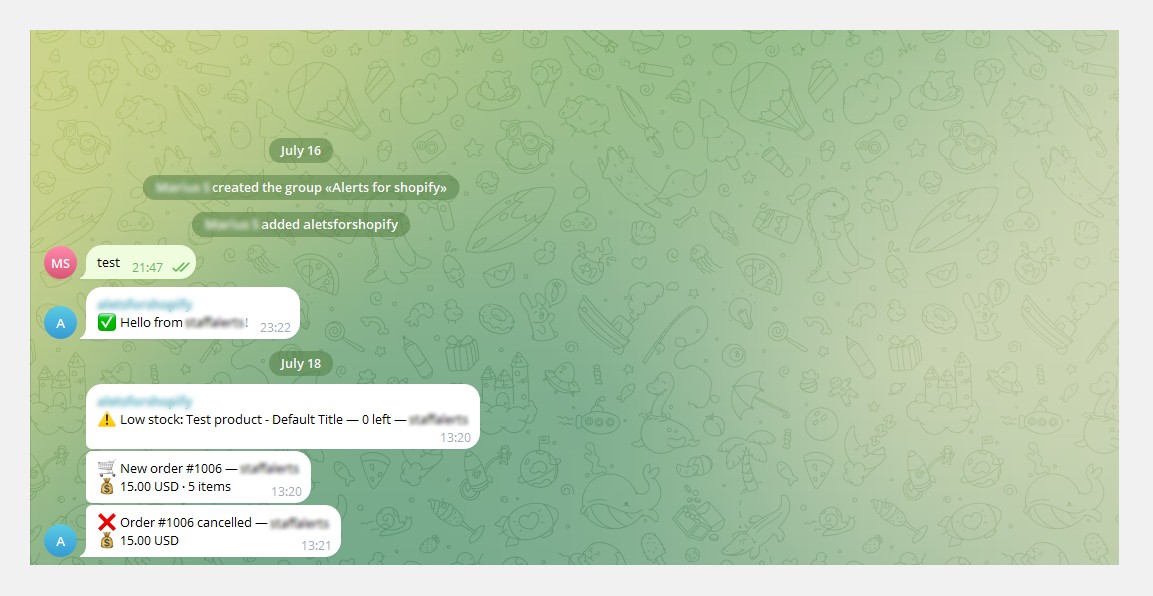
Alerts carry the order number, total, item count and your store name. No names, emails or addresses are sent or stored.
What the alerts look like
A new order message is short on purpose: order number, total, how many items, and which store it came from. That is all a packer needs, and all that leaves your store.
How it works
Free from the Shopify App Store. No account to create, no card.
Through Telegram's official BotFather. The token stays yours, and nothing routes through a bot shared with other shops.
Alerts can go to you personally, or to a team group where everyone sees them.
The app confirms delivery, and keeps a log of recent alerts so you can always see what got through.
What it costs
Dingio is free today, with no trial and no card. Paid plans for stores with higher alert volumes may come later. If they do, merchants already using Dingio will get notice before anything changes for them.
Questions
Do I need to know anything technical?
No, but you do have to create a Telegram bot, because Telegram has no other way to issue a bot token. It takes a couple of minutes and the guide below walks through it. If you get stuck, message us and we will do it with you.
Can several people get the alerts?
Yes. Send them to a Telegram group and everyone in it receives every alert, with no Shopify account needed.
How fast do alerts arrive?
Usually a second or two after the order is placed.
What if a message fails to send?
Failed sends are retried, and every message is logged with its delivery status so you can see exactly what reached your chat.
Help & setup
How to connect your store to Telegram, and what to do when something doesn't work.
Setting upChat IDTeam groupsTroubleshootingContact
1.Setting up (about 2 minutes)
Before you start, make sure Telegram is installed and you're logged in: on your phone, your computer, or at web.telegram.org.
- Create your Telegram bot. In Telegram, open @BotFather, send
/newbot, and follow the prompts (any name; the username must end inbot). BotFather replies with a token like1234567890:AA… - Paste the token into Step 1 of the app and save.
- Connect your chat. Open a chat with your new bot in Telegram, press Start, send it any message, then click Detect my chat in the app. Detect my chat only looks at messages from about the last 24 hours, so send a new one right before you click it.
- Test it. Turn on the alerts you want, click Send test message, and watch it arrive in Telegram.
Why do I need my own bot? The bot is yours, so the token stays yours and nothing is shared with other shops.
New to this? There's a longer walkthrough, including how Telegram compares to email and Slack, in the Shopify → Telegram notifications guide.
2.Finding your chat ID (manual setup)
If Detect my chat doesn’t find you, you can enter your chat ID by hand:
- In Telegram, open @userinfobot and press Start.
- It instantly replies with your ID - a number like
123456789. - In the app, expand “Can’t auto-detect? Enter your chat ID manually”, paste the number, and click Save chat ID.
A chat ID entered by hand takes priority over Detect my chat, so while it's saved, detecting a different chat won't move your alerts. To go back to the detected chat, clear the Chat ID field and click Save chat ID.
3.Sending alerts to a team group
- Create a Telegram group with your team (or use an existing one).
- Add your bot to the group: group name → Add Members → search for your bot's username → add it.
- Make your bot an admin. This step is required, and it's easy to get wrong: group name → Administrators → Add Admin → select your bot → save. Telegram sometimes doesn't save this on the first try: if your bot isn't listed under Administrators, close and reopen Telegram and try again.
- Check it worked: open Administrators again and confirm your bot is listed there. If it isn't, repeat step 3.
- Send a new message in the group. Then, in the app, choose Send to a team group and click Detect my chat. It only looks at messages from about the last 24 hours, so send the message right before you click.
Why admin? Telegram hides normal group messages from bots unless they're an admin, so without it the app can't find your group.
Manual route: temporarily add @userinfobot to the group - it posts the group’s ID. Group IDs are negative numbers (for example -100123456789) - include the minus sign. Remove @userinfobot afterwards.
4.Troubleshooting
| Message in the app | What it means & the fix |
|---|---|
| Bot token invalid | The token wasn’t copied fully, or it was revoked. Open @BotFather → /mybots → your bot → API Token, copy it again and re-save in Step 1. |
| Chat ID not recognized | The number has a typo, or it belongs to a different bot’s chat. Re-check with @userinfobot; for groups, make sure you kept the minus sign. |
| Bot blocked / not started | The bot can’t message you until you press Start - open the chat with your bot and press it. If it was blocked, unblock it in the chat settings, then press Start again. |
| No low-stock alert arrived | Low-stock alerts fire when inventory crosses your threshold, with anti-spam so you aren’t pinged on every unit sold. Check the threshold in Alerts settings. |
Is it working right now? The Recent alerts list at the bottom of the settings page shows the last 20 messages and whether Telegram accepted them. If a row says Delivered, it reached your chat.
5.Privacy
No customer personal data is stored. Alerts contain the order number, total, item count and your store name, nothing else. Your data is deleted within about 48 hours of uninstalling the app, as described in the privacy policy.
6.Still stuck?
Message us - we read everything and usually reply well within 24 hours:
- Telegram: @EpicPilotLabs (fastest)
- Email: dingio@epicpilotlabs.com